How to Use Custom Event Colors in Google Calendar
Google Calendar now lets you give events any color, not just the old 11. This guide shows how to add your own colors, use them, and fix them when they don't show.
What changed
Google Calendar used to have 11 event colors. In June 2026, Google added custom colors.
- Every calendar now has 24 colors from Google.
- You can add your own colors too, using any hex code.
- Each color you add is called a label. A label is a color with a name, like "Work" or "Gym".
- It works for personal Google accounts and for Google Workspace.
Google turned it on slowly, starting June 17, 2026. If you don't see it yet, check again later.
Add your own color
- Open Google Calendar on a computer.
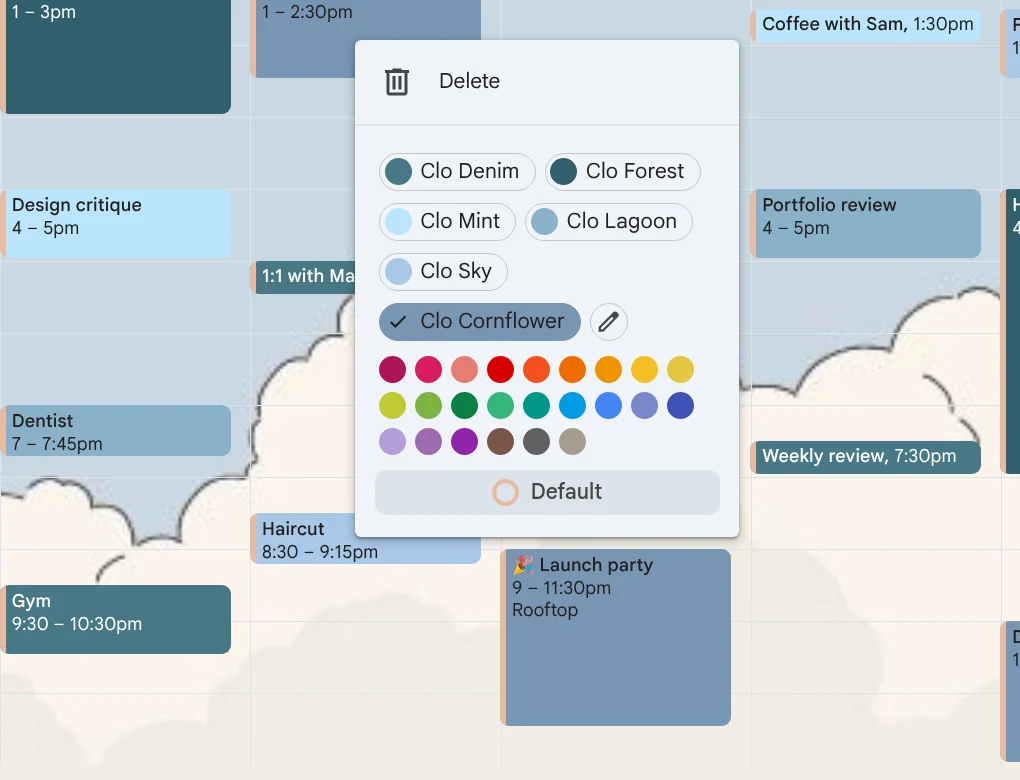
- Right-click any event. Click the pencil after the colors. It is called Edit labels.
- Click Add label (+).
- Pick a color, or type a hex code like #9f7fa7. Click Select.
- Give the label a name.
- Click Save.
You can add more than one label before you click Save.
Use your color on an event
Right-click an event and click your color. It changes right away.
Or open the event and click the pencil (Edit event). Next to the calendar name, click the color button and pick your color. Then click Save.
Use your colors on your phone
Colors you add on a computer also show in the Google Calendar app, and you can pick them there. To add a new color, use a computer.
Change or delete a color
Open Edit labels again.
- To rename: type a new name.
- To change the color: click the color on its row, pick a new one, and click Select.
- To delete: click the trash can on its row, then click Delete. Events with that color go back to the calendar's color.
Then click Save.
Color a whole calendar
Event colors change one event. To change the color of a whole calendar:
- Find the calendar in the list on the left.
- Click the ⋮ menu next to it.
- Click Add custom color (+), type a hex code and save.
Why can't I see my colors?
- They belong to one calendar. Each calendar has its own labels. If an event is in a different calendar, add the label to that calendar too.
- The calendar is view-only. Calendars you can only view, like holidays, can't have labels.
- You hit the limit. A calendar can have up to 200 labels. Google's 24 colors count too. When it's full, the + button turns gray.
- Dark colors look lighter in dark mode. In Google's dark theme, very dark colors are shown lighter. The saved color doesn't change.
- The update hasn't reached you yet. Google turned it on slowly. Try again later.
Who can see your colors
You can see them, and so can people who can make changes to that calendar.
Add a whole set of colors at once
Adding colors one by one takes time. CalHue, an extension for Chrome, has six ready-made palettes of six colors each. With CalHue Pro, it adds a whole palette to a calendar for you, with names. It never changes your other labels or your events.
CalHue can also make six colors from a picture, like your calendar background.
See all six palettes and their hex codes: Google Calendar color palettes.